


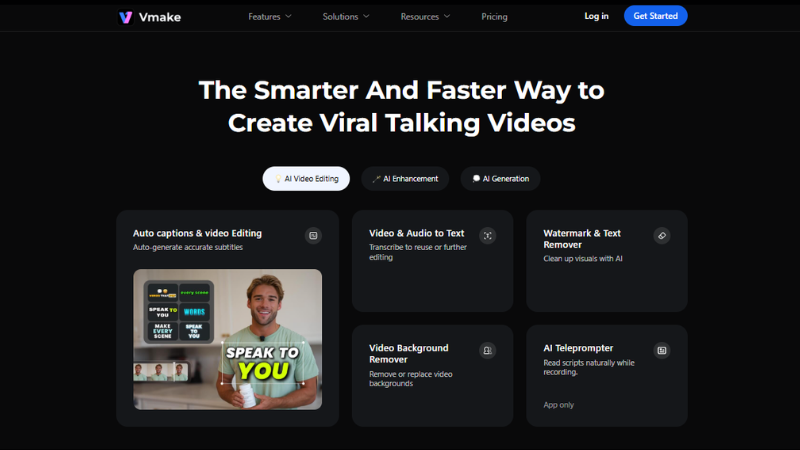
Short videos dominate the internet. Scroll through TikTok, Instagram Reels, or YouTube Shorts and the pattern becomes obvious. Brands, creators, and online stores are all competing for attention with quick video content.
The problem is simple.
Producing videos usually takes time. Editing takes even longer.
This is exactly the gap Vmake is designed to fill. The platform offers tools designed to help creators produce and edit marketing videos without complicated software.
Upload a clip. Apply a tool. Export the finished video. That is the idea behind Vmake.
This article explores what the platform does, its key features, and how it performs in real use.
What Is Vmake?
Vmake is an online ugc video generator platform focused mainly on talking videos and social media content. The platform handles the full process from start to finish. Instead of learning professional editing software, users can upload a video and apply automated tools. Everything runs in the browser, so it works on any device. No installation is needed.
The platform supports tasks like:
- creating marketing videos
- improving video quality
- removing unwanted elements
- generating captions and thumbnails
Many creators use it for social media marketing and product promotions.
The interface is designed to stay simple. Upload. Edit. Export.
The tool’s ratings sit at 4.5/5 on Trustpilot and 5.0/5 on Product Hunt — both earned, based on what the tool actually does rather than what the marketing says.
Key Features of Vmake
1. Video Enhancer
The video enhancer is the most widely used feature of Vmake. Upload a low-quality clip, and the AI handles the rest. It sharpens details, improves texture, and smooths movement across frames.
AI 4K+ is the main highlight here. It does more than basic upscaling. Standard tools stretch pixels, which often look rough. AI 4K+ rebuilds the scene instead. It understands what’s in each frame and restores lost detail. The final video looks sharper and more natural, without the usual artificial look.
There are several scene-specific enhancement modes depending on what you’re working with:
- Portrait Restoration Mode improves facial detail. Faces look sharper. Hair appears cleaner. Skin stays natural and avoids that over-processed look
- Product Enhancement Mode works well for e-commerce visuals. Text looks clearer. Colors stay consistent. Materials show better detail, which helps in listings and ads
- Low-Light & Night Repair Mode helps with darker clips. It reduces noise. Shadows become more visible. Brightness feels more balanced in indoor or night footage
- De-AI Mode fixes the overly smooth look found in some AI-generated videos. It brings back texture and makes the footage feel more natural
Export options go up to 4K on the Pro plan. Uploaded files are automatically deleted after 7 days.
2. AI Video Generation
Another interesting feature is the video generator. Instead of starting with a finished video, users can generate one using text, images, or ideas. The Vmake Agent is the platform’s AI video creation workspace. You describe what you want. Or feed it a product link, an image, or an existing video.
Then, it generates a talking-style UGC video ready for social posting. The Pro plan unlocks the full model library: Seedance 1.0 Pro, Seedance 1.0 Lite, Wan 2.2, Kling O1, and Kling 2.6. The Plus plan gives you access to Sora 2 and Veo 3.1.
The platform also includes a Clone Viral Video option. Add a top-performing video, and the AI adapts its structure and timing. Your content follows a similar style without copying it directly. This is how many viral trends spread.
The AI Creative Ads tool works separately. Upload product images and it generates a short promotional video around them, ready for paid social campaigns.
3. Watermark and Text Remover
Watermarks can ruin otherwise useful videos.
Many supplier videos or stock clips include logos or text overlays.
Vmake also includes a watermark remover. It detects unwanted elements in the video and removes them without much input. The system scans each frame and fills in the missing area. The result looks clean and consistent across the clip.
This allows creators to reuse clips without visible branding from other platforms.
Typical elements that can be removed include:
- TikTok watermarks
- text overlays
- small logos
This is particularly helpful for e-commerce sellers who work with supplier content.
4. AI Thumbnail Maker
Every video needs a strong thumbnail.
Viewers often judge a video by its thumbnail. That small image can decide if they click or move on. Vmake includes a thumbnail generator that creates thumbnails you can use without extra editing.
These thumbnails are optimized for platforms such as:
- YouTube
- TikTok
The AI thumbnail maker generates click-worthy covers from key video moments — pulling the best frame, adding styled text overlays, and formatting for the platform. The Plus plan gives you 10 thumbnails per day across all available styles. Pro bumps that to 50 per day. The free tier gives you one daily with limited style options.
It’s powered by Vmake’s image generation stack, which includes access to Nano Banana 2, Nano Banana Pro, and Nano Banana models on the Pro plan.
5. Auto Captions
Captions are extremely important for social media videos.
Many viewers watch videos without sound.
Vmake includes an auto captions tool that converts speech into on-screen text automatically.
The system detects spoken words and generates subtitles.
Supported languages include:
- English
- Spanish
- Portuguese
Captions can be styled and customized. This helps creators produce accessible videos quickly. Export formats include 720p (free), 1080p (Plus), and 2K (Pro), and you can download either a captioned video file or a standalone subtitle file, depending on your workflow.
The custom template system on paid plans is a time-saver for anyone publishing regularly — you set your caption style once and it applies automatically to every subsequent export.
6. Additional Features Worth Mentioning
Besides the main tools, Vmake comes with a few extra features that are worth checking out.
These include:
- Video Background Remover: Get that background out of the way – whether it’s a talking head video, a product demo, or something else, and swap it out for a whole new scene.
- Video & Audio to Text Transcription: Ever wanted to turn a video into written text? This tool does the heavy lifting for you, turning spoken content into written text that you can use for whatever you need – whether it’s scripts, captions or just plain old writing material.
- AI Hook Generator: Need to grab people’s attention with your video opening? This tool is the answer – it generates opening sequences specifically for short-form social videos in style.
- AI Teleprompter: App-only feature for reading scripts naturally while recording. That way, you don’t have to learn lines off by heart or look away from the camera while trying to get it all down.
Some of the other features here even let you generate talking head videos or animated vids based around a single image that can be made to speak. It means you can build a video without ever having to hit record yourself.
Pricing at a Glance
| Plan | Credits | Video Export | Image Export | AI Video Models | Commercial Use |
| Free | 20/day | Up to 720p | 1080p with watermark | Limited | ❌ |
| Plus | 1,000/month | 1080p | 1080p | Sora 2, Veo 3.1 | ✅ |
| Pro | 4,500/month | Up to 4K | Up to 2K | Full access incl. Kling O1, Seedance | ✅ |
How to Use Vmake: Step-by-Step Process
Vmake is designed to be simple. You don’t need a video editing degree or expensive software. The idea is to upload, apply, and export. Let’s break down the workflow using some of the platform’s key tools.
Step 1: Sign Up & Upload Your Video
Visit vmake.ai and sign up for a free account. Trial credits are included, so you can test things first. Once inside, click “Upload Video” and pick your clip. This could be a face-to-camera video, a product showcase, or raw supplier footage.
Tips for smooth uploads:
- Try to keep files under 500MB
- MP4, MOV, and AVI formats work best
- If the source video is shaky or dark, that’s okay—Vmake can enhance it
Step 2: Enhance Your Video
Once uploaded, the first tool to try is the Video Enhancer. This is the feature that fixes blurry, compressed, or low-quality clips.
Select the enhancement mode that fits your video: Portrait, Product, Low-Light, Gameplay, or Animation
Click “Enhance” and wait a few seconds—Vmake processes frame by frame
Preview the result and compare it to the original
In our tests, even a slightly blurry product demo became sharper. Text on packaging popped, and skin tones in talking-head videos looked natural. Colors are corrected automatically. So, you don’t have to adjust brightness or contrast manually.
Step 3: Remove Watermarks or Text
Videos with logos or TikTok watermarks? Try the Watermark and Text Remover. Upload the video. The Vmake’s smart AI will automatically detect the watermark from the video.
Then, apply the remover, and Vmake reconstructs the background behind it automatically. Check the results.
This works well for supplier clips you want to repurpose or product videos downloaded from stock sites. The results are surprisingly clean. No weird patches or ghosting effects.
Step 4: Generate Talking Marketing Videos
AI Video Generation is one of the standout features. With it, you can produce a short promotional clip or talking-head video without recording yourself.
To use it, go to the Video Generator section:
Choose a style or AI model (Sora 2 or Seedance Pro models work great). Upload an image, description, or script.
Vmake generates a video where the AI “talks” about the product or explains features:
We tested a serum bottle video. Input: product image + short script. Output: a 30-second talking marketing video. The AI’s lip-sync is smooth, and gestures look natural. You can even customize the background or add captions before exporting.
Step 5: Export Your Video
Once your video is ready, export it. Free plan exports go up to 720p. Plus plan allows 1080p. Pro plan reaches 4K. You can also export standalone subtitle files if needed. The interface lets you choose the file format and naming convention. Credits are deducted automatically based on the tool and export resolution.
Tips for Best Results
Good lighting still helps. The enhancer can fix a lot, but starting with a clear clip gives better results. Try to keep your setup simple and well lit.
Keep scripts short for talking videos. Clear and direct lines work best. This helps the AI process speech more accurately.
Always preview before exporting. Check captions and thumbnails carefully. Export in the right size for each platform. TikTok and YouTube Shorts use 1080×1920. Instagram works well with 1080×1080 or 1080×1350.
Pros
- The video enhancer is genuinely excellent across most content types — particularly AI 4K+ and Product Enhancement Mode
- Auto captions with 99.9% accuracy across 100+ languages is strong for any creator publishing internationally
- The full-stack approach keeps the whole workflow in one place. No integrations, no format juggling between tools
- It’s web-based, so you can use it on any computer or mobile device without having to install anything
- Clean interface with no ads, which becomes more appreciated the longer you use it
Cons
Credits are the main friction point, and it’s worth being direct about it. The free tier gives you 20 credits per day, which sounds reasonable until you realize that longer clips and higher-resolution enhancement jobs consume multiple credits per task. Heavy users will find even the Plus plan’s 1,000 monthly credits run thin if they’re processing long videos or running multiple AI video generations in a single session. The Pro plan’s 4,500 credits is the comfortable tier for agency-level or high-frequency use.
Final Verdict
Vmake does not try to replace professional editing software completely. It focuses on speed and simplicity instead. For short-form content and product videos, that approach works.
The results are consistent across different tools. The enhancer improves quality, the generator creates usable clips, and the caption system saves time. Together, they form a workflow that feels practical.
Try it with a short clip or a product video. Run the enhancer, test the generator, and see how it fits into your workflow!